How to Download BGMI for PC
Playing BGMI on PC offers a massive competitive advantage. With precise mouse aiming, customizable keyboard layouts, and a larger screen, you can easily dominate close-range combat and spot enemies from a distance. If you are looking for the official bgmi download for pc, here is how you do it securely without risking a ban.
Since Battlegrounds Mobile India is strictly a mobile Android/iOS application, there is no direct `.exe` file provided by Krafton. Instead, we use a BGMI emulator for PC. An emulator simulates an Android environment on your Windows desktop. The most popular and heavily optimized emulators used by professional streamers are LDPlayer, BlueStacks, and Gameloop. First, make sure you have the latest BGMI APK downloaded before proceeding.
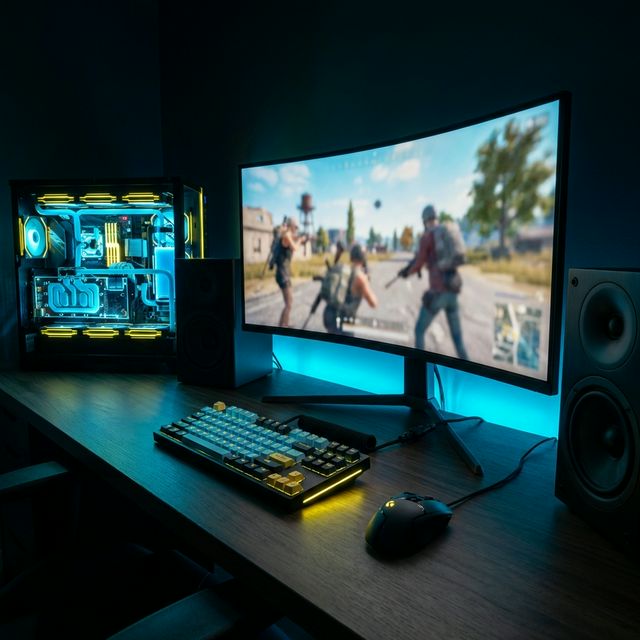
Method 1: Using LDPlayer 9 (Best for Low-End PCs)
LDPlayer 9 is currently the most lightweight and fast Android emulator. It is the best bgmi emulator for low end pc as it utilizes minimal CPU/RAM and features excellent smart-keymapping.
- Download LDPlayer 9 from their official website.
- Run the installer and complete the setup on your hard drive (preferably an SSD).
- Launch the emulator and open the built-in LD Store or Google Play Store.
- Search for "Battlegrounds Mobile India" and click install.
- Once installed, start BGMI. LDPlayer features pre-configured smart keymapping for instant gaming!
Method 2: Using BlueStacks 5 (Highest FPS Performance)
BlueStacks 5 is highly recommended for users on Windows 10 and Windows 11 because it is optimized to run Android games smoothly by utilizing your dedicated GPU (Nvidia or AMD). It also offers native 120 FPS support and smart controls that automatically show/hide based on whether you are in a vehicle, parachuting, or looting.
- Download the latest BlueStacks 5 (or BlueStacks X) installer from the official website.
- Install the emulator on your PC. Important: Ensure Hardware Virtualization (VT) is enabled in your PC's BIOS settings. Without VT, the emulator will lag horribly.
- Open BlueStacks and log in with your primary Google Play Store account.
- Search for "Battlegrounds Mobile India" in the search bar.
- Click "Install" just like you would on an Android phone.
- Once installed, launch the game. BlueStacks comes with pre-configured keymapping, but you can press `Ctrl + Shift + A` to open the Advanced Editor and customize your loot buttons, lean toggles, and fire keys!
Method 3: Using Gameloop
Gameloop is the official gaming emulator by Tencent. It comes with pre-configured keymapping for BGMI, making it very user-friendly. Because it shares the developer framework with classic PUBG Mobile, its built-in keymapping detection is exceptionally precise.
- Download the Gameloop emulator from their official site.
- Run the installer and set up the emulator engine.
- Click on the "Game Center" tab and find BGMI.
- Click download. The engine will automatically download the required APK and OBB.
BGMI PC Requirements
To run BGMI smoothly without lag or stutter on an emulator, ensure your system meets these BGMI PC requirements:
- OS: Windows 10 (64-bit)
- RAM: 4GB DDR4
- Storage: 10GB free space
- Processor: Intel Core i3 or Ryzen 3
- OS: Windows 10/11 (64-bit)
- RAM: 8GB or 16GB
- Storage: 15GB SSD space
- GPU: GTX 1050Ti / GTX 1650 or equivalent
Minimum Requirements (30-60 FPS)
Recommended (90-120 FPS)
How to Enable 90 FPS / 120 FPS & Fix Lag in BGMI PC
If you experience lag, frame drops, or mouse stutters while playing BGMI on your emulator, apply these optimization tricks:
- Enable VT (Virtualization Technology) in BIOS: Restart your PC, mash `F2`, `F10` or `Del` to enter BIOS settings. Find Virtualization Technology and set it to Enabled. This increases emulator speed by up to 400%!
- Allocate CPU Cores & RAM: Open your emulator settings, go to Performance, and set CPU Allocation to 4 Cores and RAM to 4096MB (4GB) or higher.
- Set Graphics Renderer to DirectX/Vulkan: If you have a dedicated GPU, choose DirectX or Vulkan as your rendering engine.
- Switch to High Refresh Device Profile: Inside your emulator settings, go to "Device" and change your phone profile to a high refresh device like the ASUS ROG Phone to unlock 90 FPS/120 FPS option in-game.
- Tune In-game Graphics: Open BGMI settings inside the emulator. Go to Graphics > Set Graphics to Smooth and Frame Rate to 90 FPS / Extreme.
Are Emulators Safe for BGMI Accounts?
Yes, playing on an emulator is generally safe, provided you use the official game download from the Play Store inside the emulator. You will be matched against other emulator players to maintain a fair competitive environment. DO NOT use modified APKs on emulators, as that can lead to bans. For the mobile APK download guide, visit our homepage. Want to earn free UC for your Royal Pass? Check our free UC guide.